Setting up your first property
Prices, address, photos and contact details, then activating the property.

A new account's property starts as a Draft: guests cannot see it and it takes no reservations. What it still needs to become Active is listed under Before your first booking, at the top of every screen and, in the Porta app, at the top of Today.
At the top of the screen, choose Before your first booking, then Finish next to the first unit. The units were entered when the account was opened.
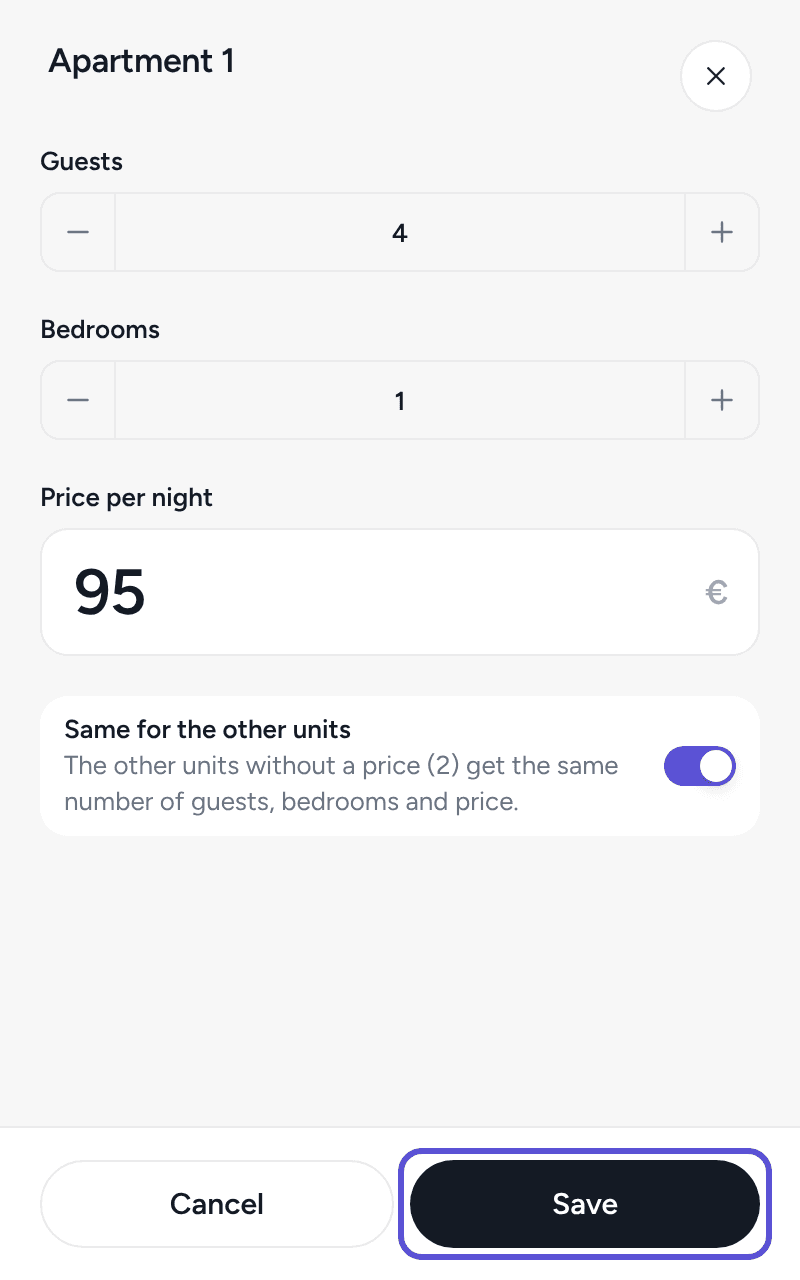
Check the number of guests and bedrooms, enter the price per night and choose Save. With Same for the other units on, the other units without a price get the same.
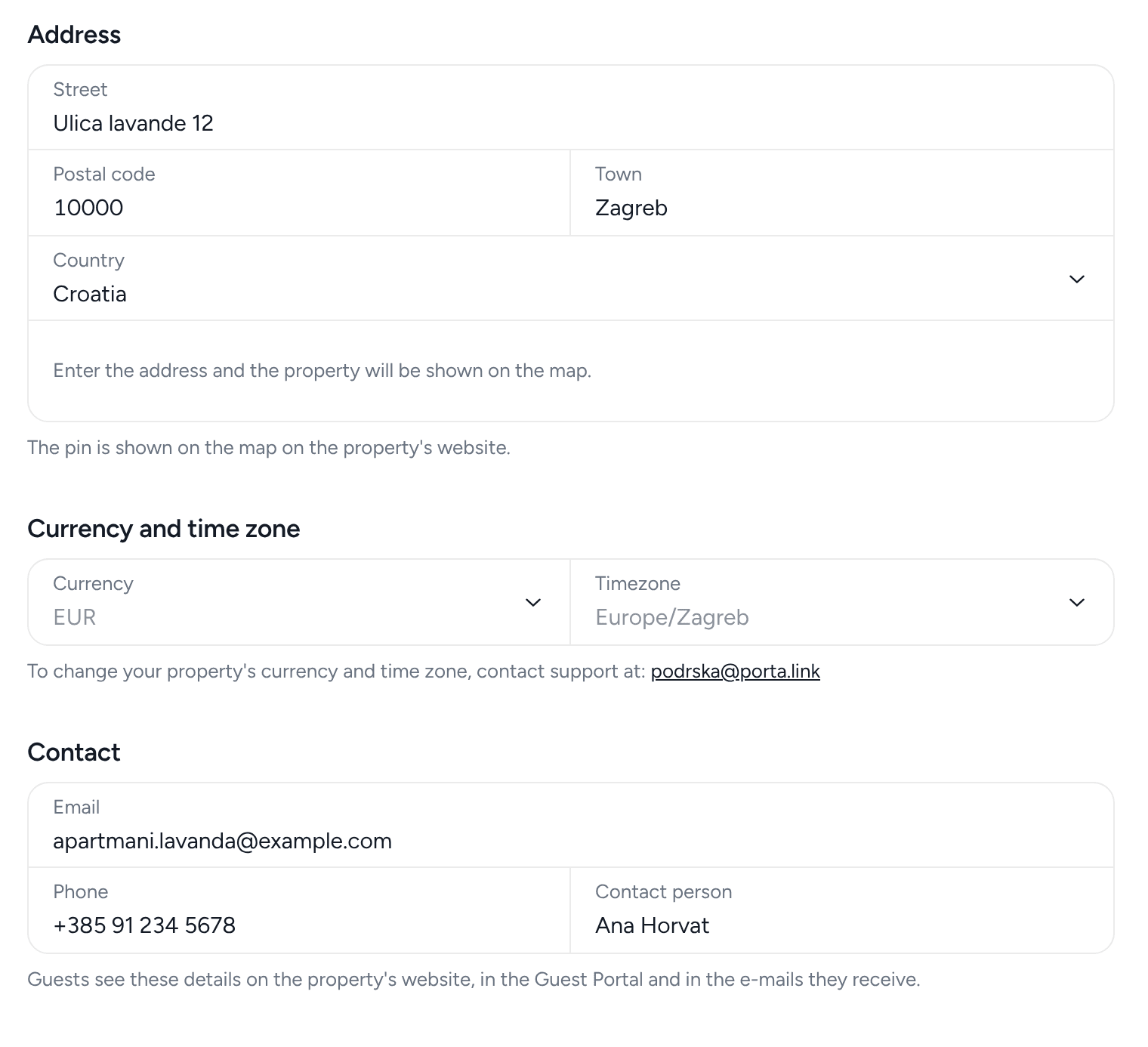
In the list, under Address and photos, choose Open the property. Enter the address and, under Contact, the property's email and phone, then choose Save at the bottom.
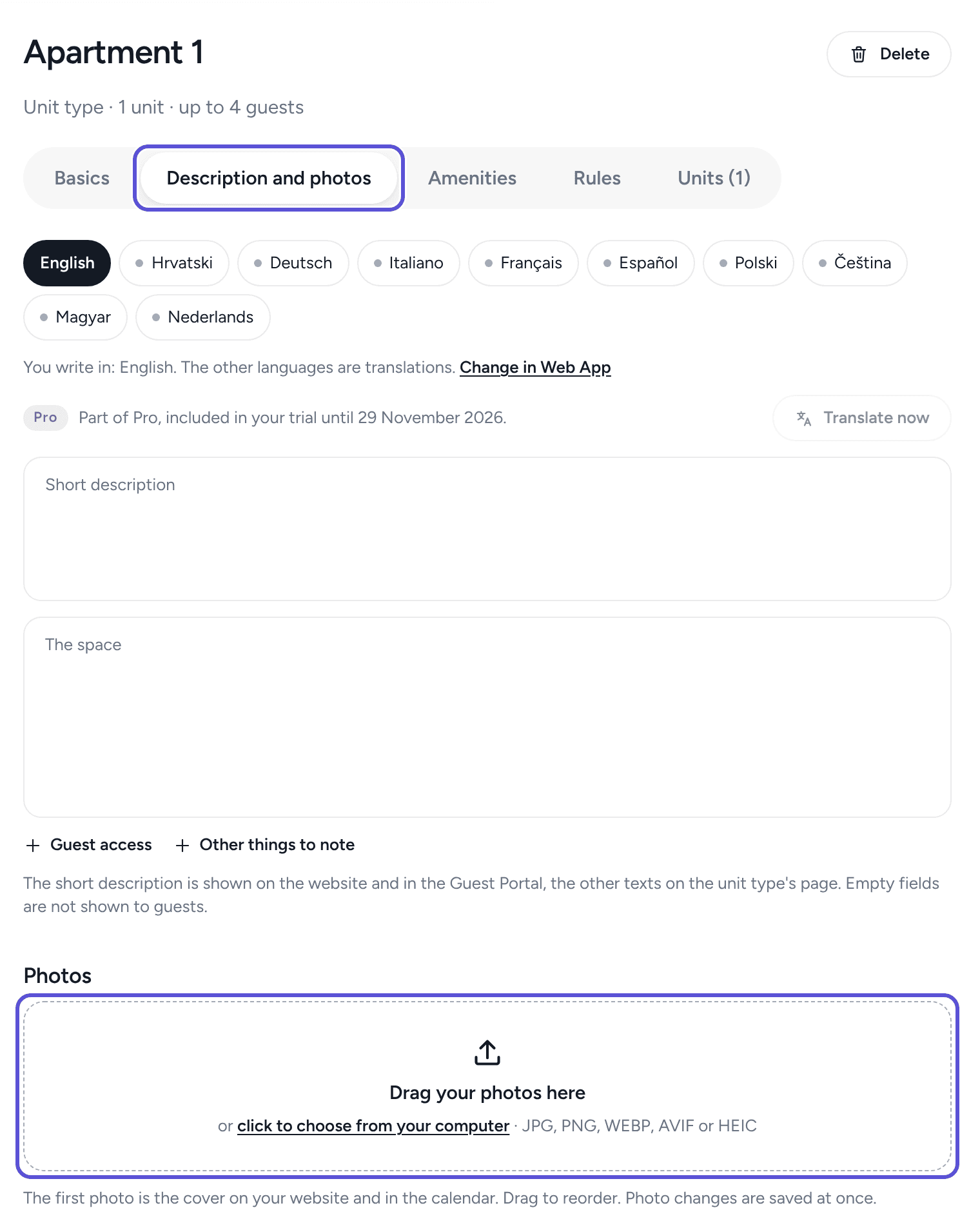
On the same screen, open the Units tab, choose a unit type and then Description and photos. Add at least one photo; photos are saved at once.
When every item in the list is ticked, choose Activate property. The property becomes Active, goes on sale and takes reservations.
Switching from another PMS. When the account is opened to switch from a PMS whose data Porta brings over, units, prices and reservations come from that system, and the list Before your first booking is not shown.
Did this article help you?
48 users found this article helpful