Inviting a team member
Access to Porta for team members, with a role and permissions per person.

Team members are invited by an Admin of the account.
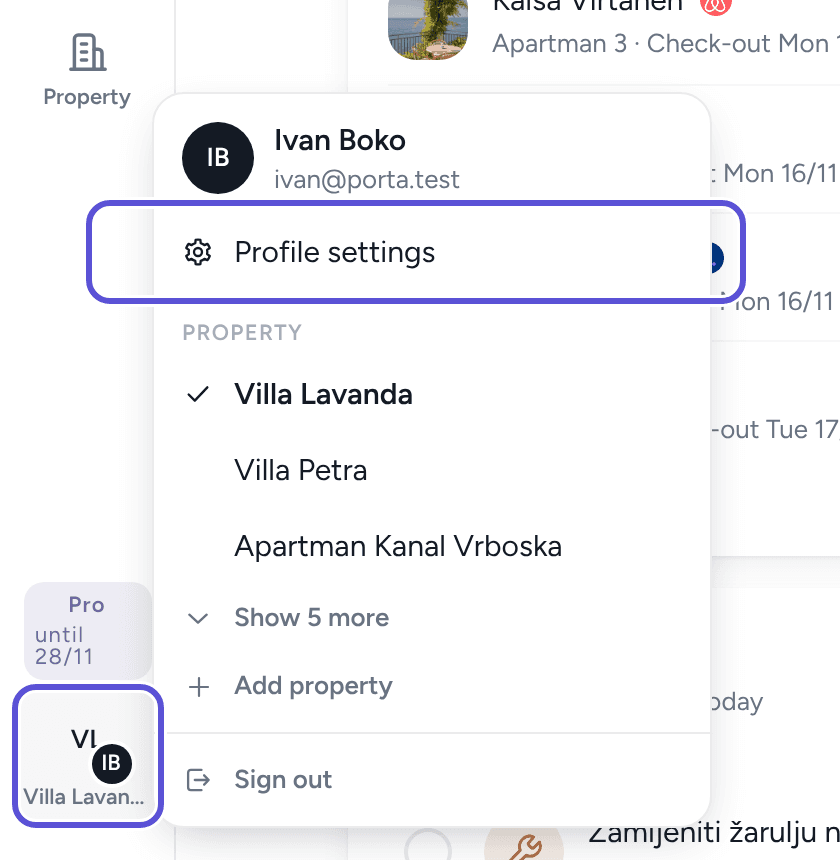
Open Profile settings from the menu under your name, bottom left.
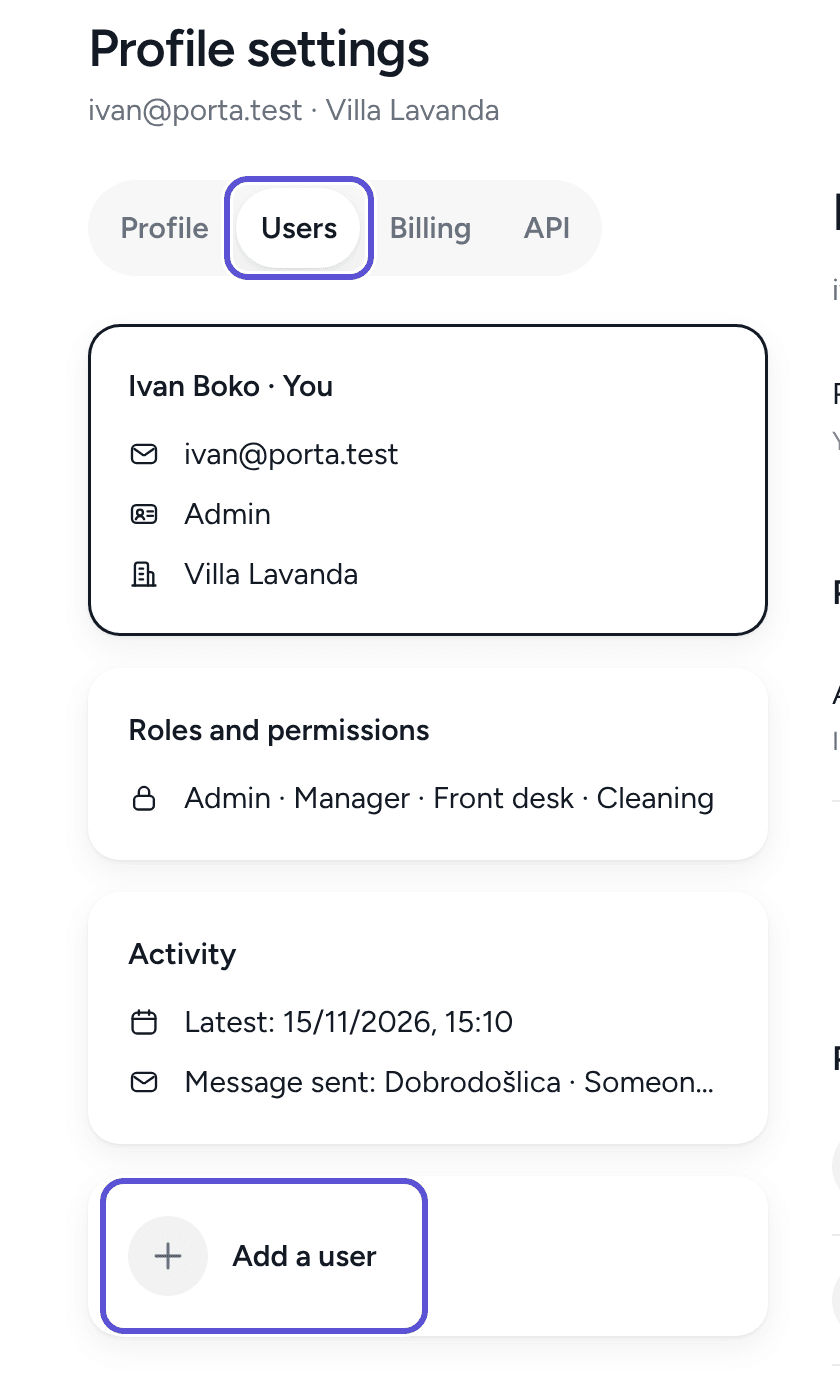
On the Users tab, choose Add a user.
Enter the email and name and choose a Role. The role sets the default permissions.
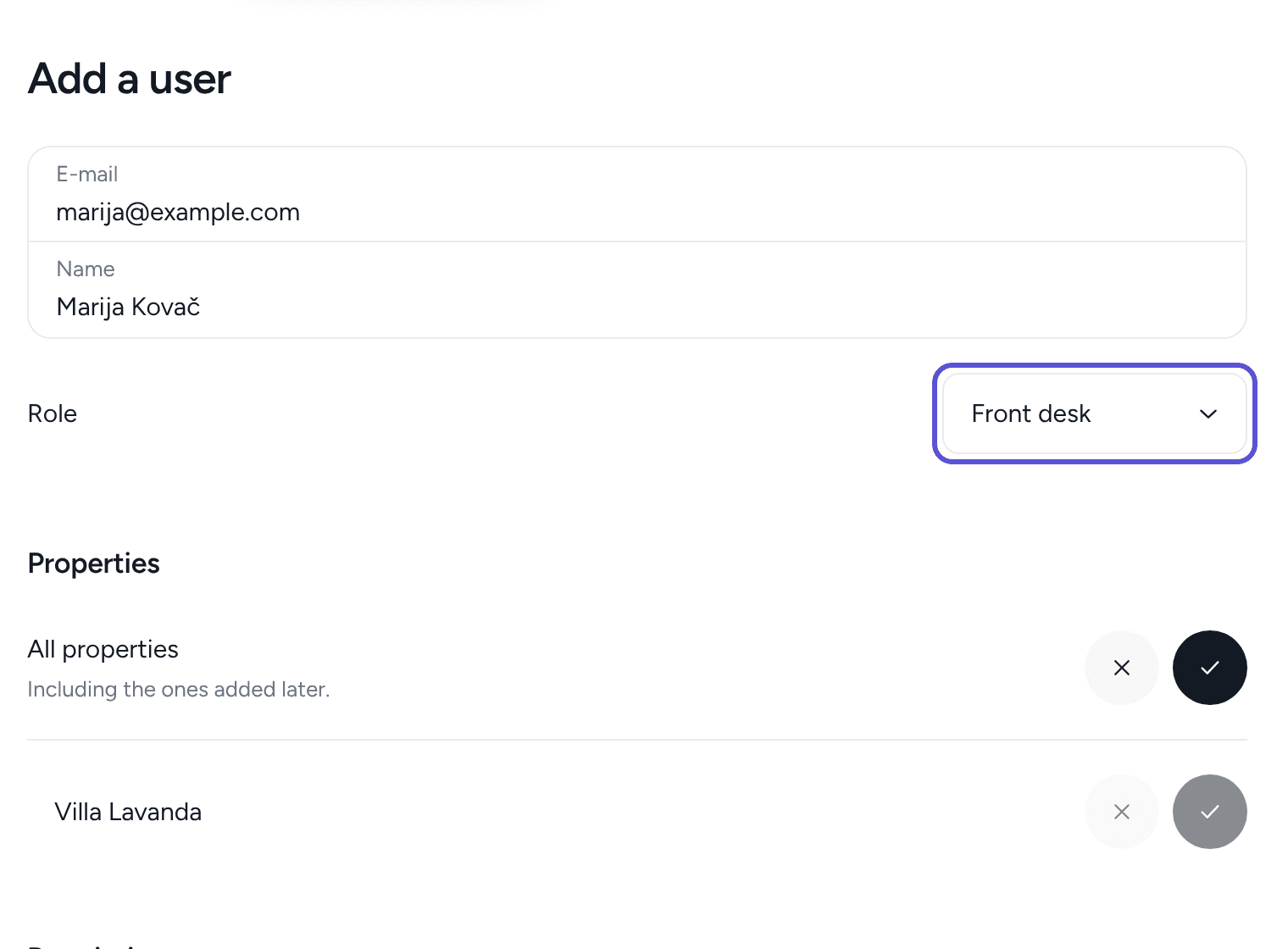
Adjust access under Properties and Permissions. Changing a permission manually sets the role to Custom.
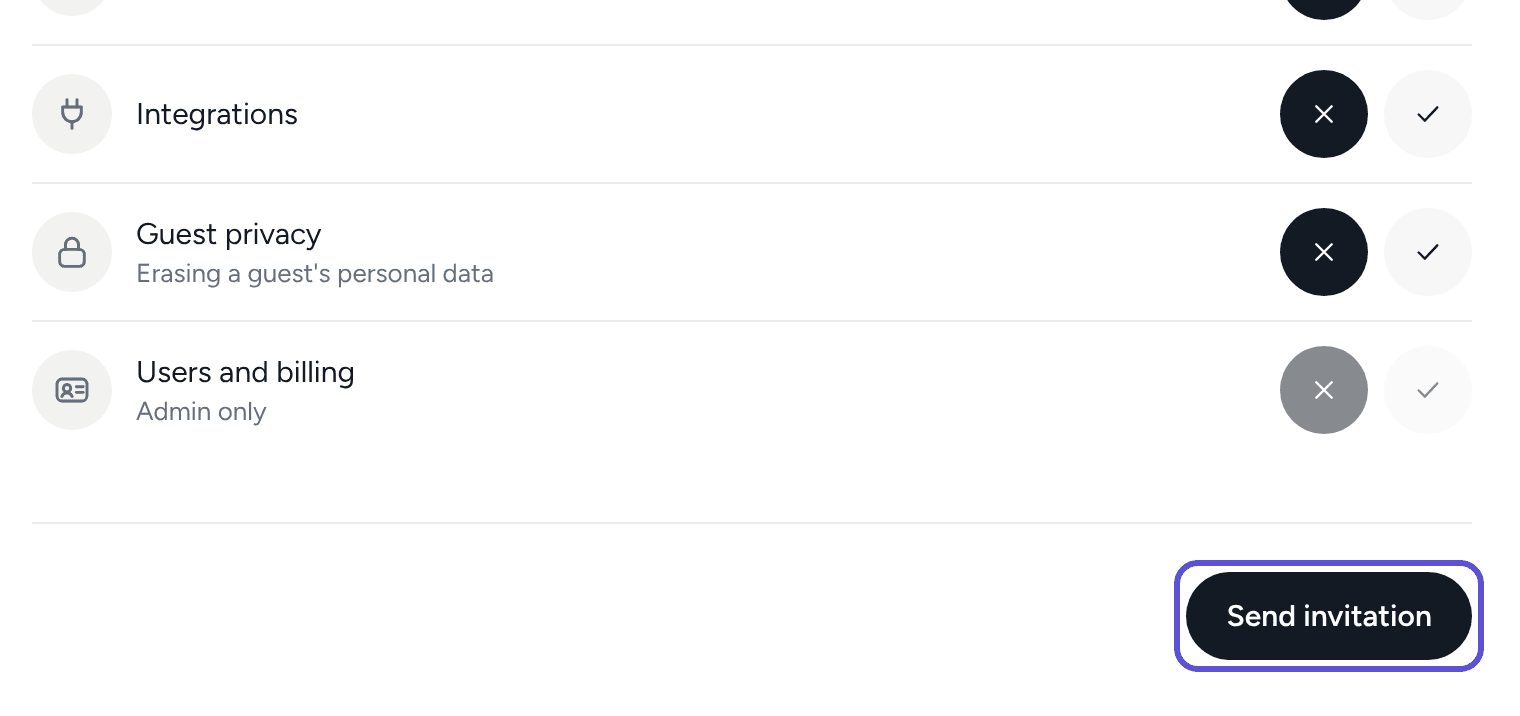
Choose Send invitation.
The invitation email contains a link for setting a password, valid for 7 days. Existing Porta users get access immediately.
Admin role. An Admin holds every permission in every property. Users and Porta billing are managed by Admins only.
Did this article help you?
39 users found this article helpful